
Imagine your PC suddenly fails. Thanks to OneDrive, your documents are already stored in the cloud and can be restored with just a few clicks. Here’s how to set it up.
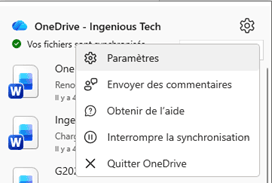
Right-click the OneDrive icon in the taskbar (bottom right of your screen).

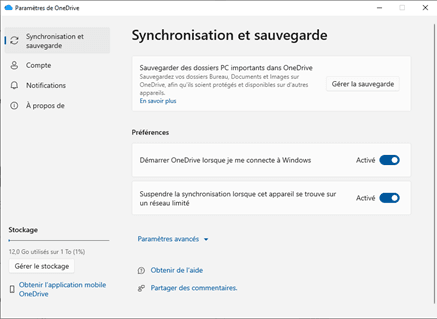
Choose the folders you want to back up from your PC to OneDrive. By default, these files are not shared with other Microsoft 365 users.
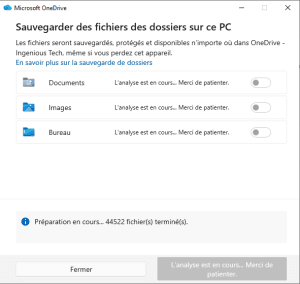
Additional folders such as Music or Videos may also be available.
💡 Tip: To ensure your files are backed up automatically, move them into one of the folders protected by OneDrive.
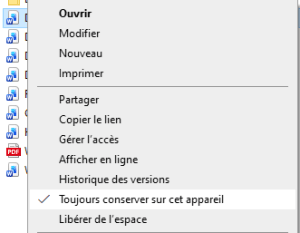
Need instant access to your files? OneDrive can keep a local copy on your computer.
Running out of disk space? OneDrive can also keep files available online without storing them locally.
Right-click any file or folder and choose:
 Always keep on this device to store a local copy and avoid waiting for downloads when opening files.
 Free up space to remove the local copy while keeping the file available online. This saves storage space but may require a short download time when opening the file.
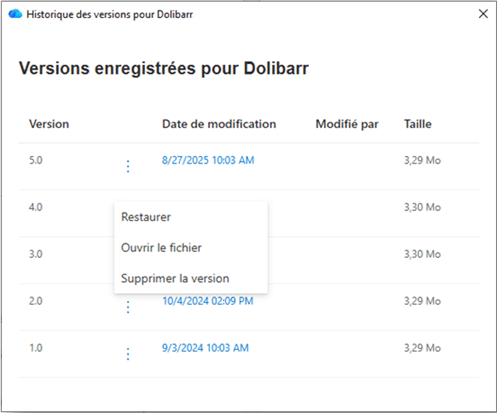
Accidentally overwrote an important document? Fortunately, OneDrive lets you go back in time and restore previous versions.
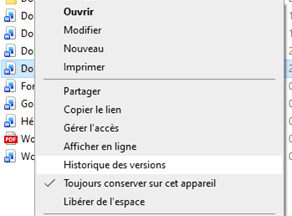
From the version history window, you can:
- Restore a previous version
- Open a previous version to review it before restoring
Need to send a large document or video to a client? OneDrive allows you to share a secure link, set an expiration date and even protect it with a password.
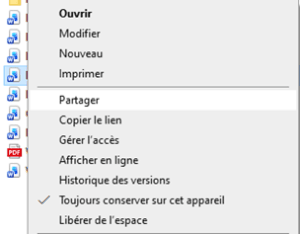
In the sharing window, choose the appropriate permission level:
- Edit
- Review
- View
- View only (without download)
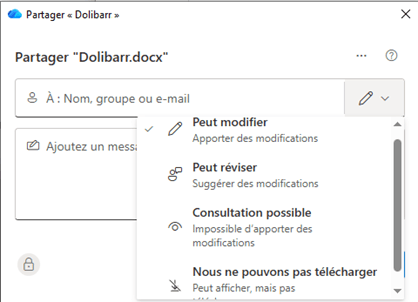
You can then enter Microsoft 365 users, groups or external email addresses. An invitation email will be sent automatically.
You can also copy and distribute a sharing link through another communication channel.
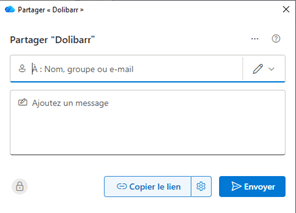
Click the gear icon next to Copy link to configure:
- who can use the link
- permission level
- expiration date
- password protection
💡 Tip: If you’re using an “Anyone” link, always consider setting an expiration date and/or password. Otherwise, anyone who obtains the link may be able to access the content.
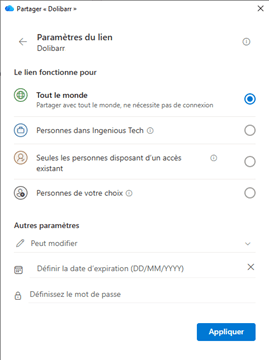
Click Apply, then Copy link, and share it using your preferred communication channel.
Access management remains essential when sharing files. Here are a few simple ways to review or revoke permissions.
 A sharing icon appears next to shared files and folders.

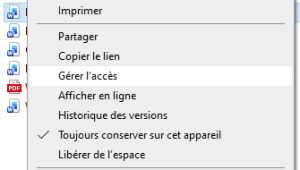
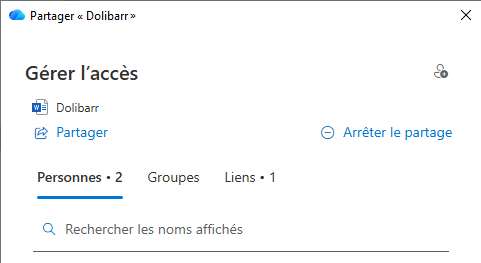
Right-click the shared item and select Manage Access.
You can add new users
modify permissions 
Or stop sharing completely.
Need to send a document urgently but don’t have access to your work computer? No problem. Your files remain available everywhere, at any time.
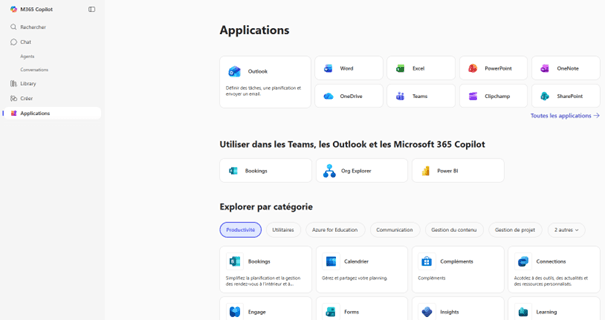
You can then access your files from any web browser.
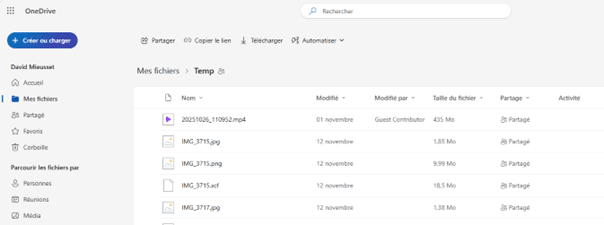
Want to securely store photos of your projects, job sites or business activities without paying for another cloud service? OneDrive is a great solution.
📱 Android
- Open the OneDrive app.
- Tap your profile picture.
- Tap Turn On under “Camera upload is off”, then confirm.
- Optional: choose your upload settings:
Wi-Fi only
Wi-Fi and mobile data
📱 iPhone
- Open the OneDrive app.
- Tap your profile picture.
- Go to Settings > Camera Upload.
- Optionally enable video backup.
- Optionally allow uploads using cellular data.
👉 Photos are automatically stored in the Pictures / Camera Roll folder within OneDrive and can be organized by year and month.
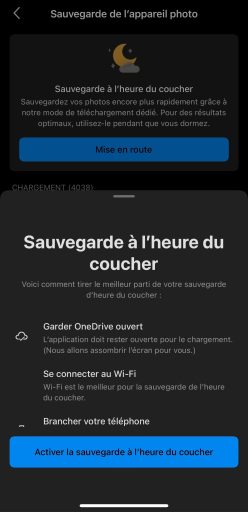
💡 Tip: To save battery life and mobile data, schedule uploads overnight. On iPhone, OneDrive may suggest Bedtime Backup, allowing uploads while the device is charging and connected to Wi-Fi.