

Deux collaborateurs utilisant Outlook et Microsoft 365 pour gérer une boîte aux lettres partagée

Outlook shared mailbox: work together without losing track

Table of Contents

When multiple people reply to the same emails, it quickly becomes difficult to know who responded, who should handle a request, or whether a customer is still waiting for an answer.

Microsoft 365 shared mailboxes allow several team members to access the same email address without sharing passwords.

Here’s how to set them up and use them effectively.

Why use a shared mailbox in Microsoft 365?

Managing a generic email address or keeping access to a former employee’s emails? Shared mailboxes in Microsoft 365 Outlook provide a simple and secure solution for collaboration.

Benefits

  • Simplified collaboration
  • Enhanced security
  • Better message tracking
  • No additional cost (depending on mailbox size)

Requirements

  • The shared mailbox must be created by a Microsoft 365 administrator.
  • Users must have Full Access and Send As permissions.
  • For full transparency, Sent Items Copy should be enabled by the administrator.


🔍 What is the Difference Between a Shared Mailbox and Mailbox Delegation?

Mailbox delegation allows another user to manage your personal mailbox. A personal mailbox is always associated with a specific Microsoft 365 user.

A shared mailbox, on the other hand, is independent and can be accessed by multiple users.

Still having trouble with your shared mailbox or Microsoft 365?

If you’re facing an issue with a shared mailbox, permissions, Outlook, or Microsoft 365 in general, tell me what’s going on. I’ll take a practical look at your situation and get back to you.

Consultant échangeant avec un dirigeant afin de comprendre une situation avant de proposer une solution adaptée.

For administrators: Create and configure a shared mailbox

Before users can access the mailbox in Outlook, it must first be created in the Microsoft 365 Admin Center.
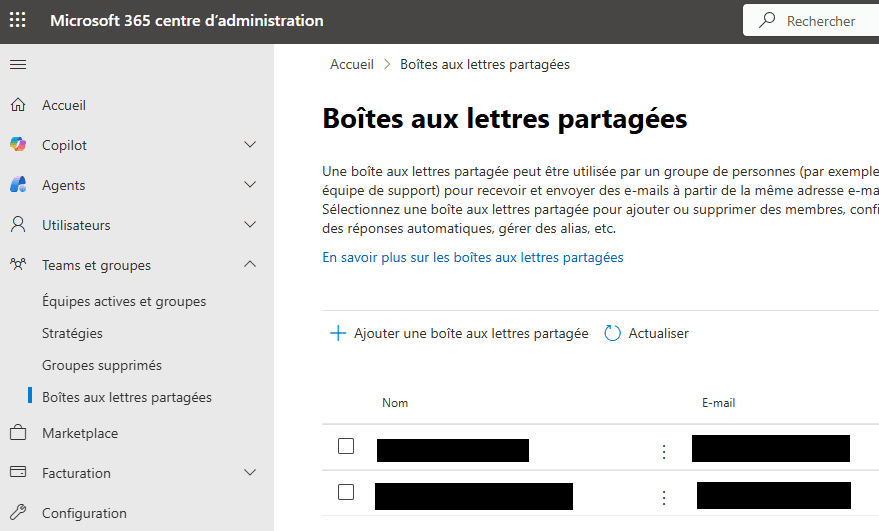
    1. Open the
      Microsoft 365 Admin Center
    2. Go to Teams & Groups → Shared Mailboxes → Add Shared Mailbox.Ingenious Tech - Outlook Boites aux lettres partagées
    3. Enter the mailbox name, email address and aliases.
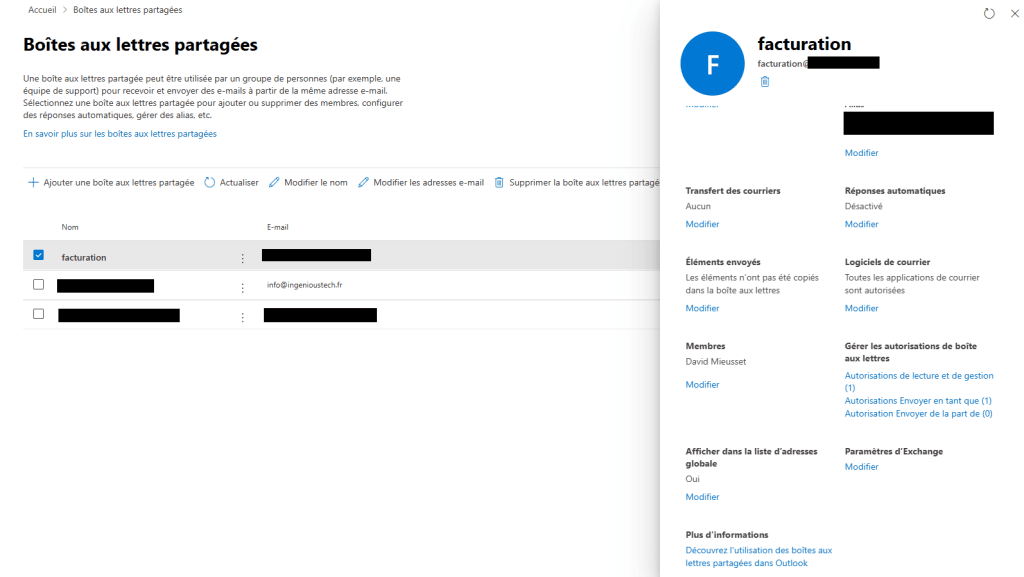
    4. Open the mailbox details. Ingenious Tech - Outlook Gestion Boîte aux lettres partagée
    5. Under Mailbox Permissions, assign the appropriate users.
Grant the following permissions:
      • ✅ Full Access
      • ✅ Send As
      • 🔲 Send on Behalf (optional)
 💡 Send As vs Send on Behalf
  • Send As

The email appears to be sent directly from the shared mailbox.

Typical use case: official communications sent on behalf of a department or the company.

  • Send on Behalf

The email is sent on behalf of the shared mailbox, while the sender remains visible.

Typical use case: maintaining transparency while identifying the person who sent the message.

For administrators: save sent messages in the shared mailbox

By default, emails sent from a shared mailbox are only visible to the sender. Enabling sent item copying improves visibility and team collaboration.
    1. In the Microsoft 365 Admin Center, Open the shared mailbox detailsIngenious Tech - Outlook Gestion Boîte aux lettres partagée
    2. Go to Sent Items
    3. Enable:
      • ✅ Copy items sent as this mailbox
      • 🔲 Copy items sent on behalf of this mailbox (optional)

Automatically add a shared mailbox in Outlook (Windows & Mac)

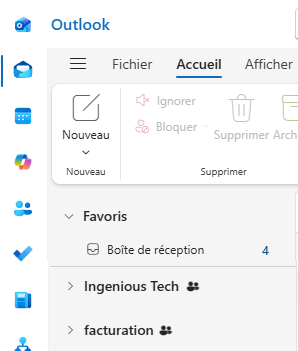
If permissions have been configured correctly, the mailbox should appear automatically in Outlook.
 
  1. Restart Outlook.
  2. Check the folder pane, the mailbox should appear below your primary account.Ingenious Tech - Outlook Client avec Boîte Partagée
  3. If it still doesn’t appear after several hours, use the manual method below.
⚠️ Why Doesn’t Automatic Mapping Always Work?Automatic mapping may fail due to:
  • Outlook version compatibility issues
  • A corrupted user profile Exchange configuration settings
  • AutoMapping not enabled

Manually add a shared mailbox in Outlook (Windows & Mac)

If the mailbox does not appear automatically, you can add it manually.

  1. Open Outlook.
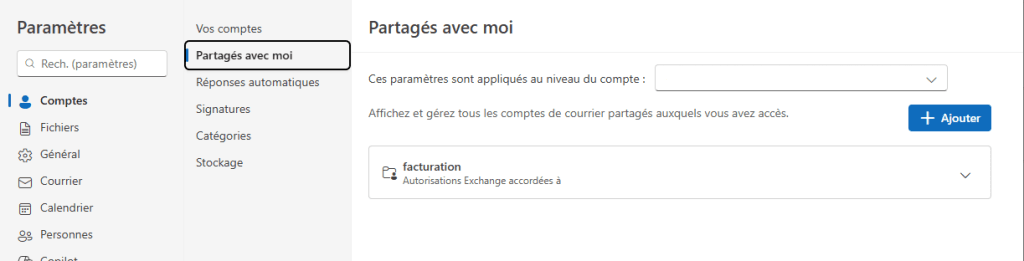
    Go to File > Account Information.
  2. Select your main account and click Manage.
  3. Click Add.
  4. Enter the shared mailbox address.

Ingenious Tech - Outlook Compte Boîte Partagées avec Moi

Manually add a shared mailbox in Outlook Web (OWA)

Using Outlook on the web? The process is very similar.

  1. Connect to https://outlook.office.com
  2. Go to Account Information.
  3. Select your main account and click Manage.
  4. Click Add.
  5. Enter the shared mailbox address.
  6. Restart Outlook if necessary.

Ingenious Tech - Outlook Compte Boîte Partagées avec Moi

Summary

A shared mailbox allows multiple team members to access the same email address while maintaining a secure working environment.

When configured properly, it improves request tracking, reduces duplicate work and simplifies collaboration.

It is often the easiest way to manage addresses such as:

  • contact@
  • support@
  • sales@
  • administration@

Technologies Covered

Leave a Reply

Your email address will not be published. Required fields are marked *

Would you like to start your business on the right foundations?

Tell me about your situation and let’s discuss what is genuinely relevant for your business.

Explore More Resources